
Contents
- What is a Threads carousel?
- Can you download all photos from a Threads carousel?
- How to download a Threads carousel with ThreadSave
- How to download Threads carousels on iPhone
- How to download Threads carousels on Android
- How to download Threads carousels on PC
- How to download photos and videos separately
- Why can't I download all carousel items?
- Tips for saving Threads carousel media
- Frequently asked questions
What is a Threads carousel?
A carousel is a single Threads post with more than one photo or video. You see the first item and swipe sideways for the rest. A carousel can mix photos and videos in any order.
Because it's one post, it has one link. That link is all you need to get every item in it.
Can you download all photos from a Threads carousel?
Yes, as long as the post is public. When you paste the carousel's link, ThreadSave shows every photo and every video at once, each with its own button. You don't have to paste the link again for each item.
What ThreadSave doesn't do is pack the carousel into one zip file. You tap the buttons one after another, which also lets you skip the items you don't want.
How to download a Threads carousel with ThreadSave
Copy the carousel's link
In Threads, tap the share icon (the paper plane) under the post and choose Copy link. The link looks like https://www.threads.com/@username/post/….
Paste it into ThreadSave
Open threadsaveapp.com and paste the link into the box. The search starts by itself.
Tap each item you want
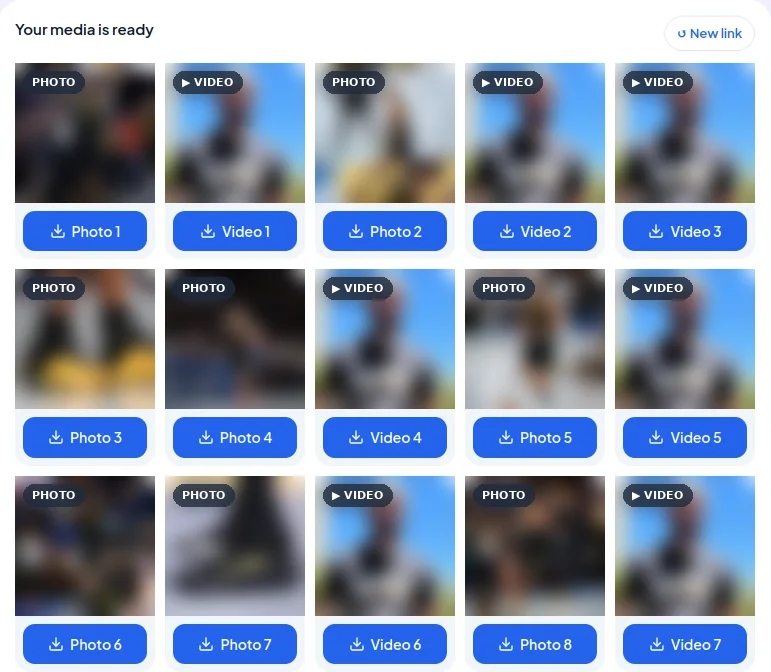
Under "Your media is ready" you get one card per item, in post order: photos are labelled Photo 1, Photo 2… and videos Video 1, Video 2…
How to download Threads carousels on iPhone
- In the Threads app, tap the share icon under the carousel and choose Copy link.
- Open Safari, go to threadsaveapp.com and paste the link.
- Tap the buttons one by one. If Safari asks, tap Download.
Safari saves everything to Files → Downloads. To move several items to Photos at once, open Downloads, tap Select, pick the files, then tap the share icon and choose the save option.
How to download Threads carousels on Android
- In the Threads app, tap the share icon under the carousel and choose Copy link.
- Open Chrome, go to threadsaveapp.com and paste the link.
- Tap the buttons one by one.
Every file lands in the Downloads folder, and most gallery apps show them right away.
How to download Threads carousels on PC
- On threads.com, open the carousel and copy the address from the address bar (or share icon → Copy link).
- Open threadsaveapp.com and paste the link with Ctrl+V (Cmd+V on a Mac).
- Click each button. The files go to your browser's download folder.
On a computer the cards sit side by side, so a whole carousel fits on one screen and you can click through it quickly.
How to download photos and videos separately
Each item has its own button, so photos and videos are always separate files:
- Photos are saved as JPEG files:
threads_photo_1.jpg,threads_photo_2.jpg… - Videos are saved as MP4 files:
threads_video_1.mp4…
Photos and videos are numbered separately, each in the order they appear in the post. Want only the photos? Tap only the Photo buttons. For more detail, see how to download Threads photos and how to download Threads videos.
Why can't I download all carousel items?
- The account is private. ThreadSave sees posts the way a logged-out visitor does. If the carousel is from a private account, nothing can be downloaded.
- An item has no download link. Occasionally Threads doesn't return a file for one item. ThreadSave leaves that item out instead of showing a broken button. Trying again a little later often brings it back.
- The item is in a reply. Photos added in replies under the post aren't part of the carousel. Each reply has its own link; copy that one.
- It's still loading. Big carousels can take longer to look up, up to about 25 seconds.
Open the post in a private or incognito window where you're not logged in to Threads. Whatever you can see there, ThreadSave can download.
Tips for saving Threads carousel media
- Tap in order. The numbers in the file names follow the carousel, so your folder stays in the same order as the post.
- Make a folder. On a computer, move a carousel's files into their own folder right after downloading so they don't mix with the next one.
- Watch your data. Videos are much bigger than photos. On mobile data, save the videos you really want first.
- Respect the creator. Keep downloads for yourself, and ask before reposting someone else's photos or videos.
Frequently asked questions
Can I download all photos from one Threads post?
Yes. Paste the post's link once and every photo appears with its own button. Tap them one after another.
Can I download a Threads carousel without an account?
Yes. You don't need a Threads, Instagram or ThreadSave account, and ThreadSave never asks for your password.
Can I download photos and videos together?
They appear together in one list, in post order, but each one is saved as its own file: photos as JPEG, videos as MP4.
Does ThreadSave preserve the original order?
Yes. Items are listed in the order they appear in the carousel, and photos and videos are numbered in that order (Photo 1, Photo 2…).
Can I download only one image from a carousel?
Yes. Tap only the button of the photo you want and ignore the rest.
Why are some carousel images missing?
Usually because Threads didn't return a file for that item; ThreadSave hides it rather than showing a broken button. Try again a little later. If an item in a public post is always missing, tell us through the contact page.