The three steps
Whatever device you use, a Threads download always works the same way:
Copy the post link
Find the post with the video in Threads. Tap the share icon (the paper plane) under the post and choose Copy link. A correct link looks like https://www.threads.com/@username/post/….
Paste it into ThreadSave
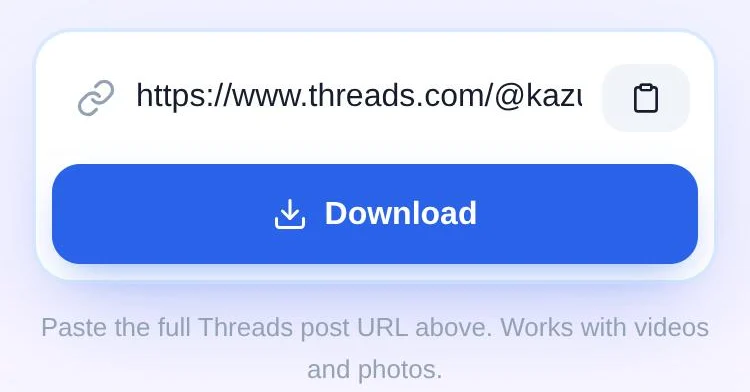
Open threadsaveapp.com and paste the link into the box. As soon as a valid Threads link is pasted, the search starts by itself. On phones you can also tap the Paste button next to the box.
Download
When "Your media is ready" appears, tap the button under the video or photo you want. If the post has several videos or photos, each one gets its own button.
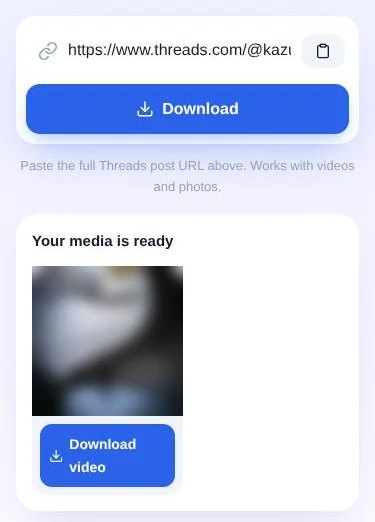
Videos are saved as threads_video.mp4 and photos as threads_photo.jpg. ThreadSave doesn't add a watermark and doesn't keep a copy of the file.
On iPhone
- In the Threads app, tap the share icon under the post and choose Copy link.
- Open Safari, go to threadsaveapp.com, tap the box and choose Paste.
- Tap Download video. If Safari asks whether to download the file, tap Download.
Safari saves the file to the Files app, in the Downloads folder, not to Photos. To move it to your camera roll, open Files → Downloads, open the video, tap the share icon and choose Save Video.
Tip: The download arrow at the top of Safari shows the progress of the file and opens it when it's done.
On Android
- In the Threads app, tap the share icon under the post and choose Copy link.
- Open Chrome, go to threadsaveapp.com and paste the link. The search starts by itself.
- Tap Download video.
Chrome saves the file to the Downloads folder. Most gallery apps show it right away; if yours doesn't, open the Files app and look in Downloads.
On PC or Mac
- On threads.com, click the post so it opens on its own page and copy the address from the address bar. The share icon → Copy link works too.
- Open threadsaveapp.com in any browser and paste the link with Ctrl+V (or Cmd+V on a Mac).
- Click Download video. The file goes to your browser's usual download folder.
If the download doesn't work
Almost every failed download comes down to one of these:
- "This doesn't look like a Threads post link." The text isn't a threads.com or threads.net link. Copy the link again straight from Threads and paste only the URL, without any extra text.
- "We couldn't find any media in this post." The post is from a private account, was deleted, or contains only text. ThreadSave sees posts the way a logged-out visitor does, so private posts can't be downloaded.
- It takes a while. Some posts take longer to look up. The note under the box tells you it's still working; it can take up to 30 seconds. If Threads doesn't answer in time, try again a moment later.
A quick way to check whether a post is public: open its link in a private or incognito browser window where you aren't logged in to Threads. If you can see the video there, ThreadSave can download it.
FAQ
Is ThreadSave free?
Yes. There's no sign-up, no app to install and no limit you'll reach with normal use.
Do I need to log in to Threads or give my password?
No. ThreadSave never asks for your Threads or Instagram login. Be careful with any site that does.
Can I download photos and carousels too?
Yes. A post can contain one video, one photo, or several of both. Every video and photo gets its own download button.
Will the person who posted know I downloaded it?
No. ThreadSave reads the public post the same way a logged-out visitor does and doesn't interact with the account.
Can I repost the video?
The video belongs to the person who made it. Saving it for yourself is one thing; reposting or using it elsewhere usually needs the creator's permission. Download only content you own or have permission to use.